
Part 1
- Turn on your skin analysis Laptop
- Open the Microsoft Edge browser. There should be an icon on your desktop.

- Click on the following link...
https://1drv.ms/u/s!AppfqBB6LEiQgZpmbc6bIGWiAkTf-Q 
- A message will show up at the bottom of the screen. Click the option to Run.

- When the download completes, a dialog box will open asking “Do you want to allow this app to make changes to your device?” Click Yes to allow it to make changes.
If the dialog doesn’t appear, look in the Windows bar at the bottom of the screen for a flashing shield icon  and click it, then click Yes.
- Click Clean
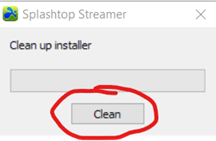
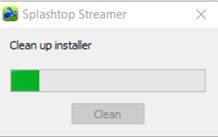
The progress bar will gradually fill with green until it is done, then the box will go away.
Part 2
- Click on the following link...
https://my.splashtop.com/team_deployment/download/JT237THS45YX
- When the page loads, click the little check box to allow L’Moor to access your computer.
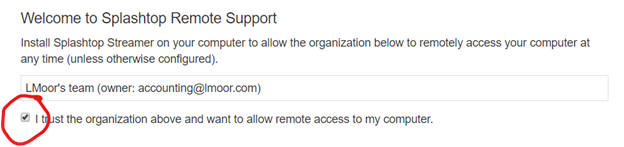
- A new section will open on the page. Click the download button.
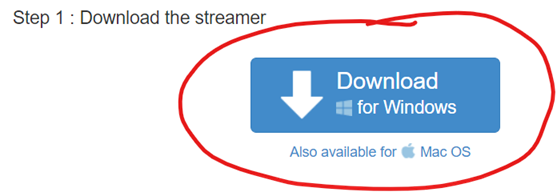
- Select the Run option for when the download starts

- When the download completes, a dialog box will open asking “Do you want to allow this app to make changes to your device?” Click Yes to allow it to make changes.
If the dialog doesn’t open, look in your status bar at the bottom of the screen for a flashing shield icon and click it, then click Yes.
- A dialog box will appear. Click Next
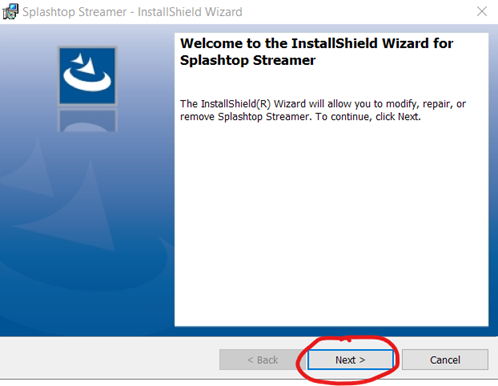
- Select Repair, and then click Next
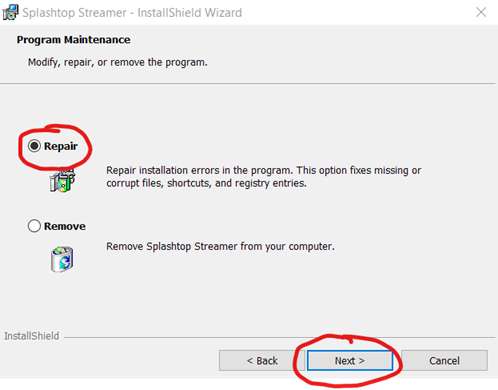
- Click Install
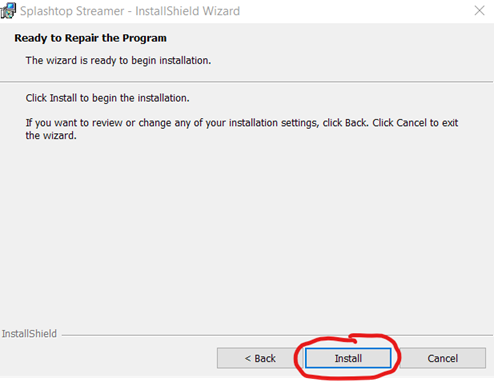
- Wait
- The Splashtop Steamer window will appear, and shortly after that a dialog box will appear on top of it. Click Confirm.
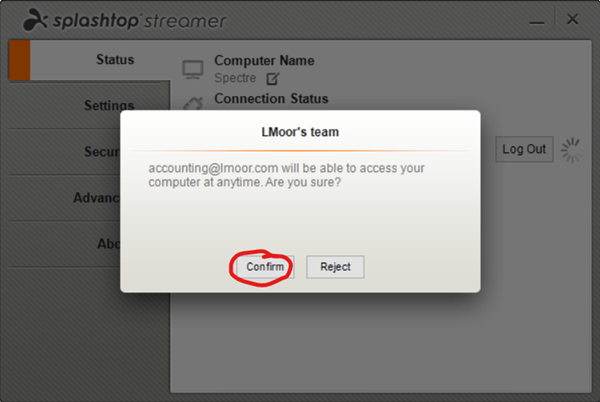
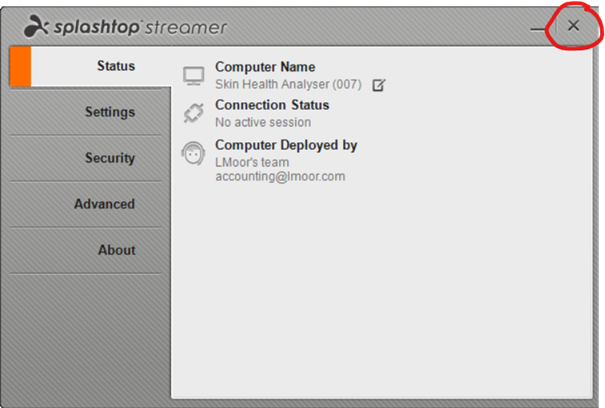
- The dialog box will go away, and you will be left with the Splashtop Steamer configuration app. Just press the X in the upper right corner to dismiss it.
- That's it! Sit back for a moment while we configure things on our end, and do a test connection.